
Step-by-Step Guide to Showing Up On Google & Google Maps: That Any Business Owner Can Follow20 min read
December 23, 2025While almost everyone uses a search engine like Google on a daily basis, there are still a surprising number of local businesses that are not listed on Google or are listed but not easily discoverable by their ideal customers or clients.
Yes, AI search is a thing…but that’s for another article. If you want to delve into showing up in AI, check out this article on digital marketing trends for 2026 by our CMO, Anthony Gaenzle.
For showing up in the Google eco-system, stay with us right here.
If you’re like many business owners today, you’re probably wondering, “How can I make my business show up on Google?” You’re in luck. We’ve updated our popular guide with the latest in all things Google to help you show up when it counts the most. Read on for our top recommendations.
What Will You Learn?
Key Takeaways:
- Claim and verify your Google Business Profile to appear on Google Maps.
- Manage your listing directly in Google Search or Maps. No separate app id needed.
- Engage with reviews, Q&A, and messaging to improve your local business visibility. Need more business reviews? Check out Sharp Reviews Service.
- Build a simple website to show up in broader Google Search results.
- Submit your business info to online directories for stronger Google trust and rankings.
Update: Google My Business is now called Google Business Profile (GBP). Google officially rebranded “Google My Business” to Google Business Profile back in late 2021. All Google Business listings are now managed through Search and Google Maps, and the old GMB app has been retired.
Start with the Google Basics
Create a Google Business Profile (formerly Google My Business) listing and get it verified, build a website (our web design team is standing by the help), and publicize your business’ name, address, and phone number.
In this guide, you will learn how to easily execute each of those steps so that your business can stop being invisible and start showing up in search results where it counts.
You don’t have to be computer-savvy or have any marketing skills to follow this guide. We’ve broken down each step into bite-sized chunks that don’t require the mind of an SEO expert to execute.
After reading this guide on how to get your business profile to show on Google, if you still need assistance, schedule a free consultation with Sharp Innovations.
Phase 1: How to Create A Google Business Profile To Get Listed On Google Maps
Getting your business listed on Google Maps means that clients or customers who already know about your business will be able to easily get directions to your store or office.
It’s also the first step in showing up when people search for local businesses that offer specific services. If you’re a roofing contractor or a local shoe store that relies on foot, wouldn’t it be great to show up, front and center, on Google Maps when people search for “roof repair near me”?
In order for your business to show up in Google Maps, you need to to learn how to create and verify a Google Business Profile. It’s free and easy to do. Here’s how to do that, step by step.
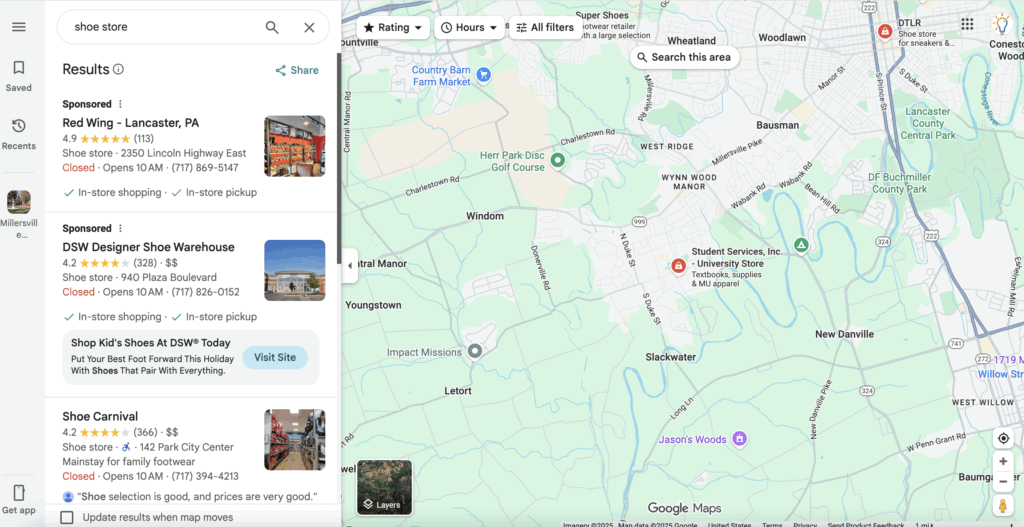
Step 1: Log in to your Google account.
You’ll need a Google account in order to create and verify your Google Business listing. Go to any Google service page, such as https://myaccount.google.com/ and log in. You may use a personal Google account (your account email address and username will not show up publicly), but if you have a Google account for your business, we recommend that instead. If you don’t have a Google account yet, you can create a new one here.
Step 2: Go to Google Business
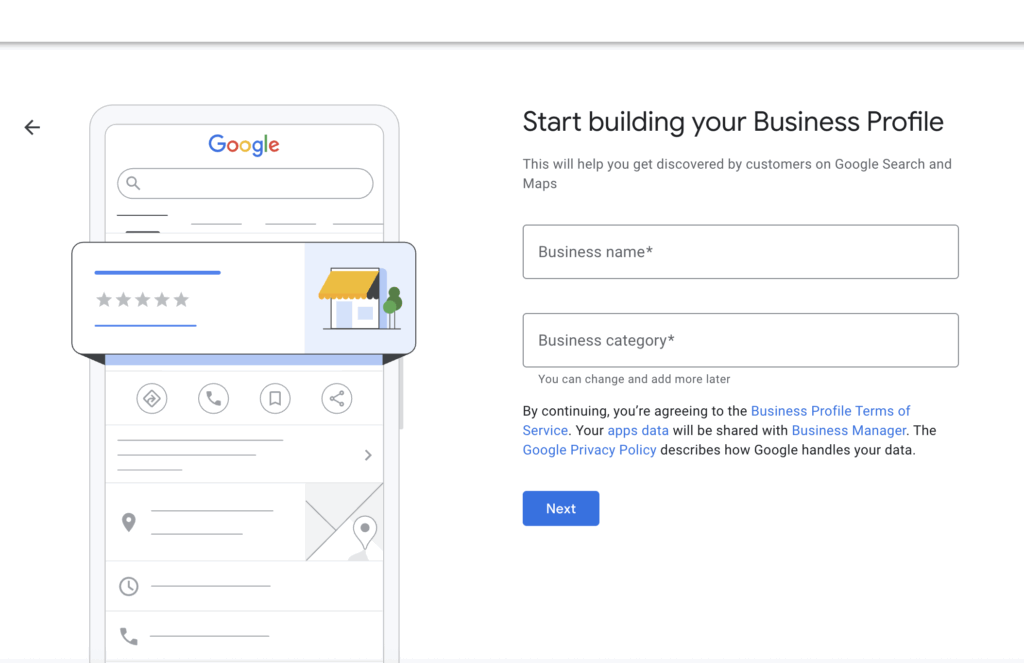
Once you are logged in (see previous step), go to https://business.google.com/create and you should see an option to search for your business. Type your business name, and if a listing shows up then click on it to claim it. If nothing shows up, click the option to “Create a business with this name.”
Step 3: Type Out The Name Of Your Business
In the “business name” box, type out the exact name of your business as you would like it to be shown publicly. You don’t have to include a suffix like “LLC” or “Inc”, although you may if you would like to.
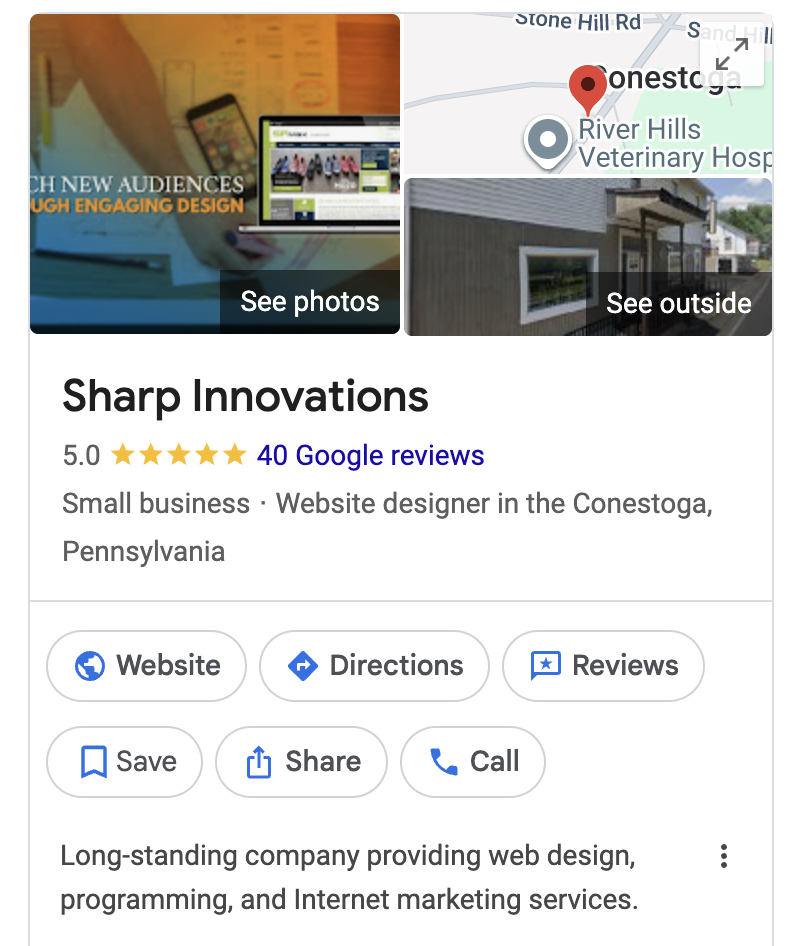
This should be the name that you most want to represent your business. For example, rather than list our business as Sharp Innovations. LLC, we list it as simply Sharp Innovations.
Step 4: Choose Your Business Category
In the “Business category” box type out a category that best defines your business. This is how Google determines when to show your business listing to people who are searching for the services you offer.
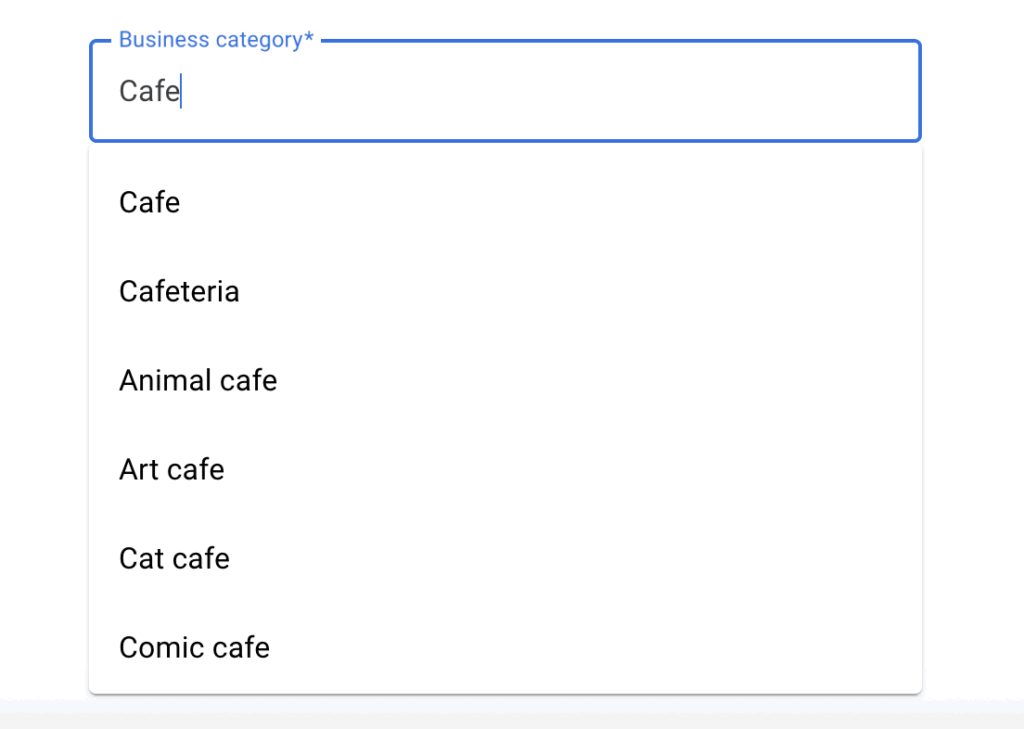
We recommend going as broad as possible while still remaining accurate. For example, if you only do residential roofing jobs, then “Roofing contractor” is probably your best category.
However, if you do roofing jobs, kitchen remodeling, flooring installation, etc, then “General contractor” is probably your best category.
If you run a cafe, think about getting the type of cafe correct, rather than being generic, to attract the right searchers.
Step 5: Does Your Business Have A Physical Location?
By choosing “Yes” here, it means that when people are searching for your business or for services that your business offers, people will be able to see where your business is located in relation to them.
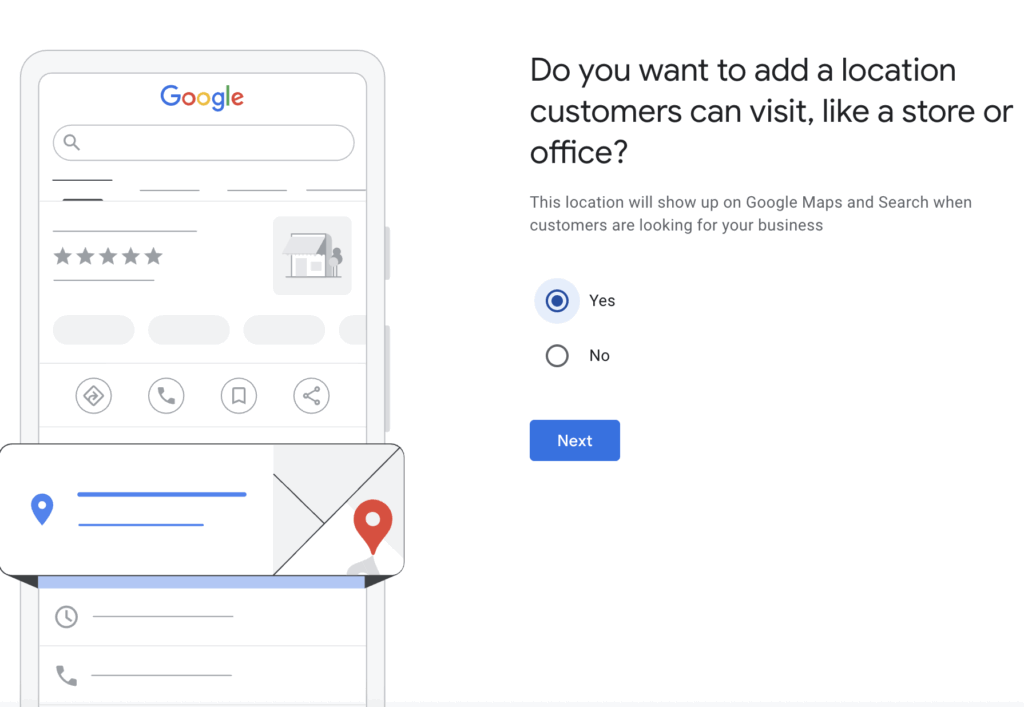
In most situations, “Yes” is the best option to choose. If your business has a store-front where customers can visit, definitely choose “Yes”. Even if your clients or customers don’t typically visit your office or home office (such as if you’re a sole proprietor offering roof repair services), we still recommend choosing “Yes” so that people can see if you’re relatively close to them.
If for some reason you do not want your address to show up on your Google Business Profile, then choose “No” in this step.
Step 6: Type Out Your Business Address
If you chose “Yes” in the previous step, you’ll need to type out your business’ physical address. If you chose “No” in the previous step, you can skip to the next step.
Simply type in the street address for your business, and then cilck “next”.
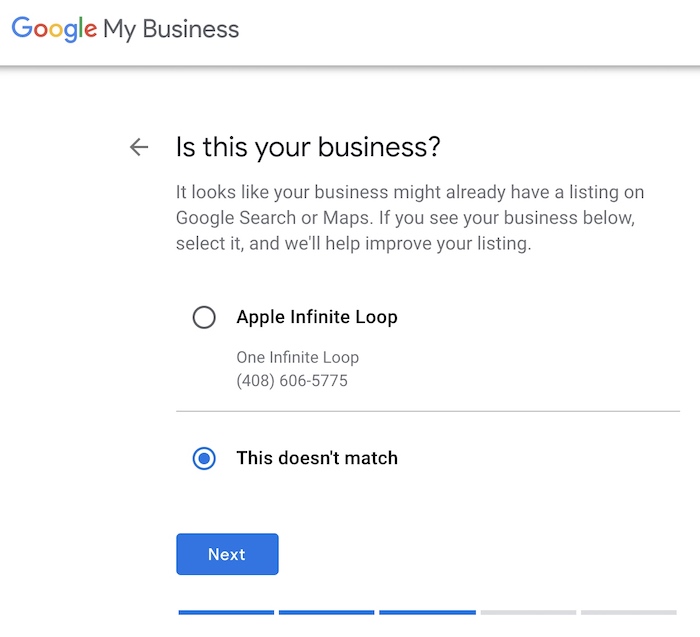
Step 7: Check For An Existing Listing
If you see the screen below next, then it means Google has found a listing that matches your business’ address. If the business name associated with the address is your business name, select it. This means that Google somehow already discovered your business’ name and address by itself. If it doesn’t match, click “This doesn’t match” and then click Next.
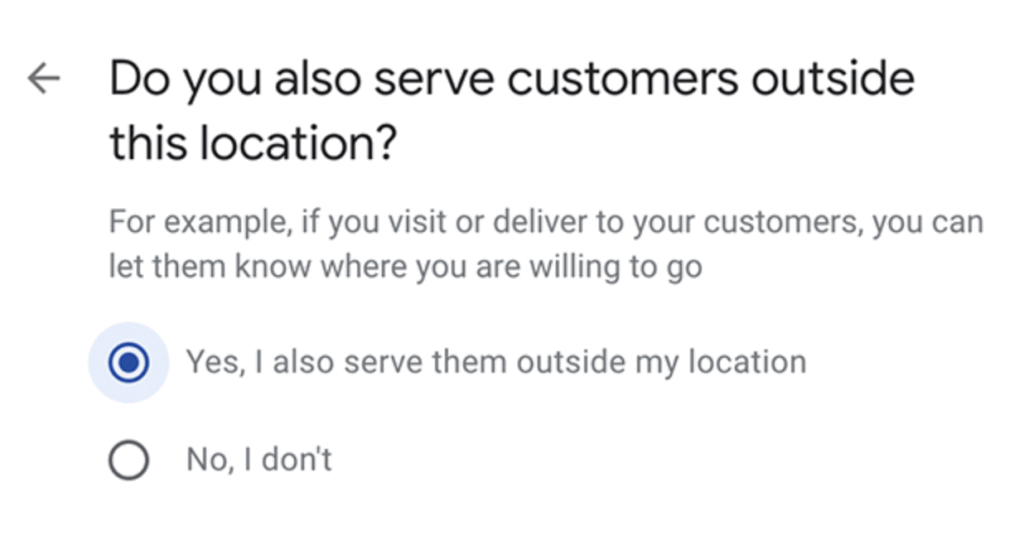
Additionally, when the screen below pops up, you can select yes to show that you are available to serve customers outside of just your physical location.
Step 8: Your Business’ Service (style)
After step 7, you’ll be asked whether your business provides home and office visits or deliveries. Select whichever option best fits your business, and then click “next”.
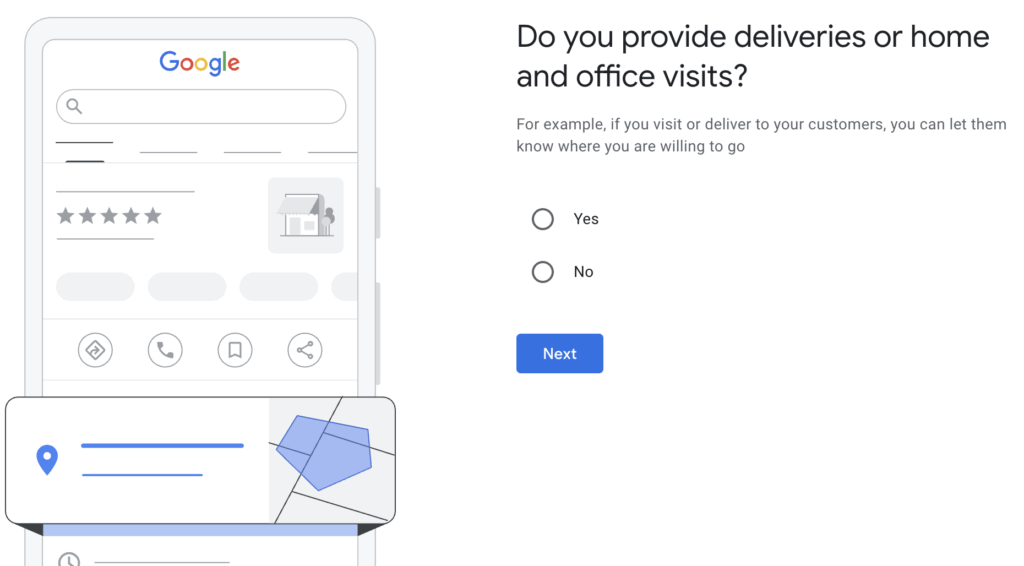
If you choose “yes” then you’ll want to consider adding service areas. Keep in mind, however, that this step is optional, so if you don’t want to limit your profile to certain locations, you can skip this step.
Step 9: Areas You Serve
As mentioned, if you chose “Yes” in the previous step, you’ll now be given the option to define where you can serve your clients. Type in all of the areas where you can serve your clients. This helps Google to show your listing to people who are geographically within the area that you serve. Proximity is one of the Google Business Profile ranking factors that influence rank performance.
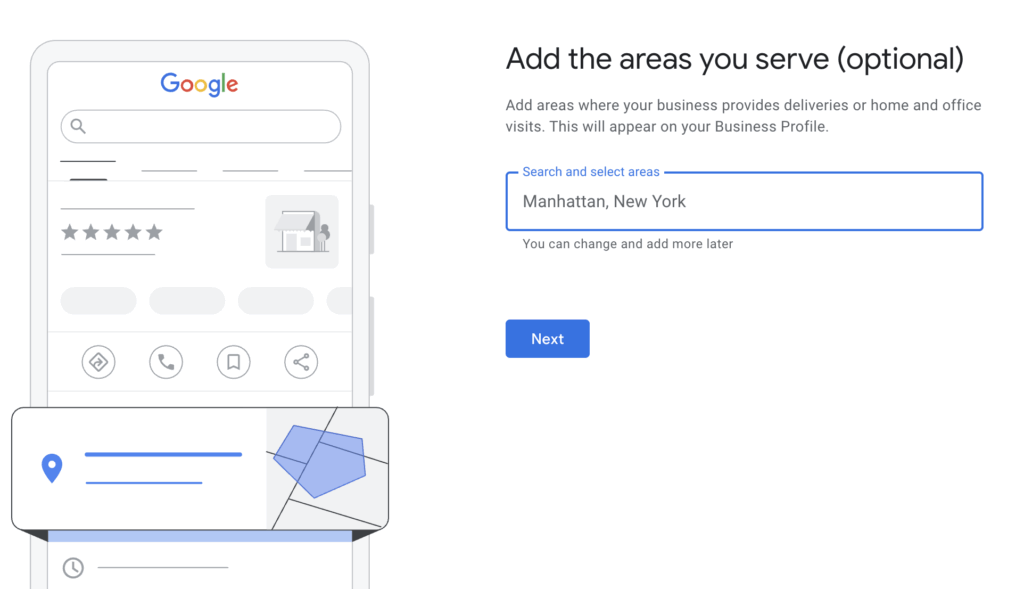
The fastest and easiest way to finish this step is to type in county names instead of specific towns or cities. For example, if you serve an entire county that has 15 cities within that county, you simply need to enter the county name, not each of the 15 individual cities within that county.
But make sure you don’t extend your area too broad. You don’t want to show up for potential clients in areas where you are unable to serve.
Step 10: Your Business’ Contact Details
Next, you’ll want to give your customers a way to find you once they discover your Google Business Profile. Put in your business phone number and not your personal phone number in this step. This is the phone number that will show up publicly on your Google Business listing.
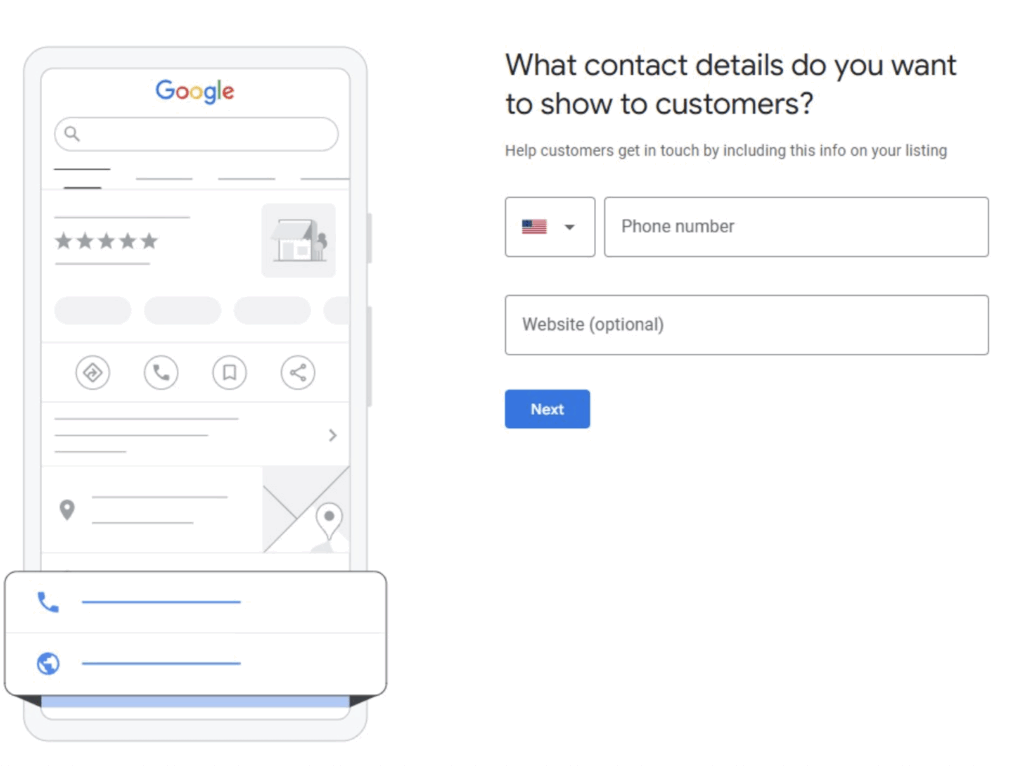
If you already have a website, type in the website’s address (URL). If you don’t have a website yet, click “I don’t need a website” for now (or contact Sharp Innovations to design one for you), and you can go back and add your website later, after you build it (See “Phase 2” below for help with this).
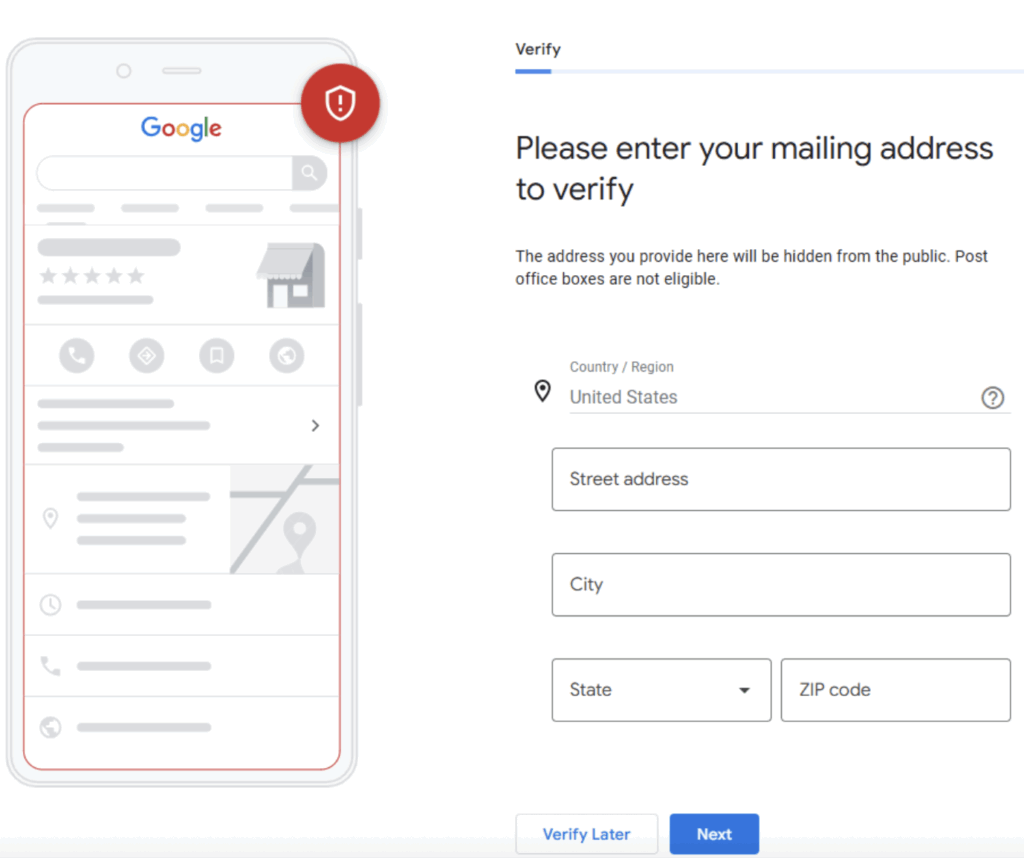
At this point, you can choose to verify your address, or you can do this step later.
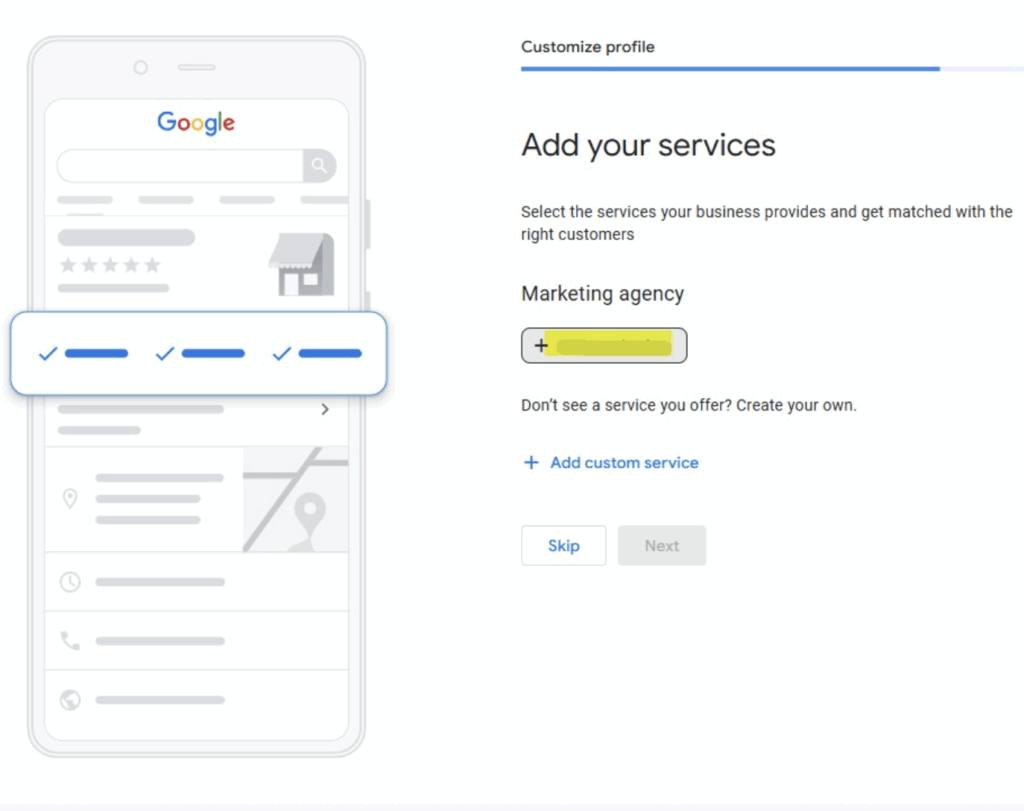
Step 11: Add Services
Don’t worry. You’re nearly finished. In this step, you’ll need to add your services and/or create any that may not be auto-offered via Google’s populated list.
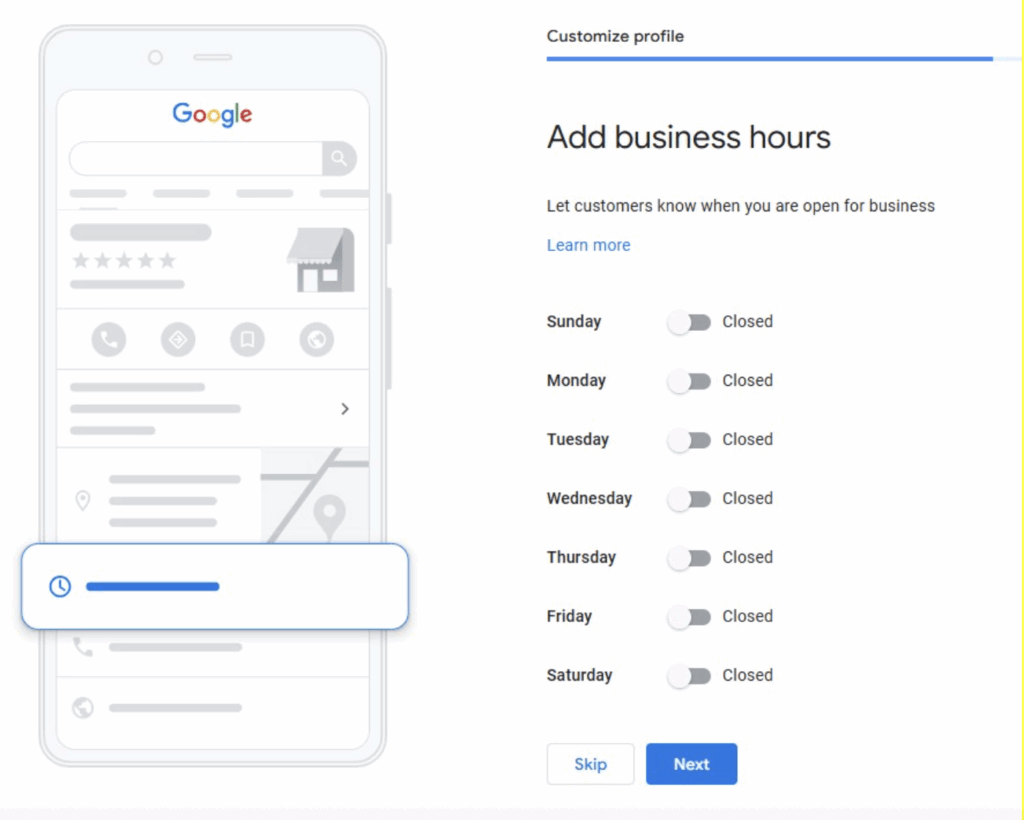
Step 12: Add Business Hours
Next, you’ll add your business hours now or wait to do so later.
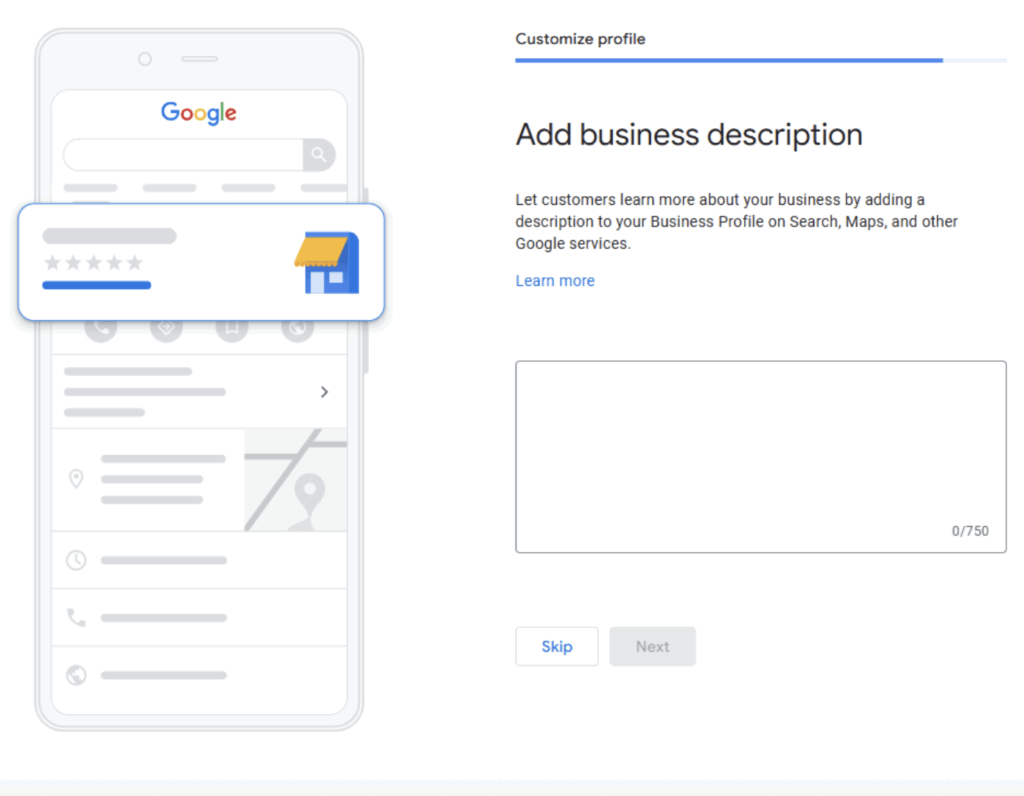
Step 13: Add a Business Description
In this next step, you’ll have 750 characters to use to describe your business. The first half of those should be used to clearly state your core business functions, service area(s) and unique selling proposition. Include words that your potential customers might use when searching for what your business offers.
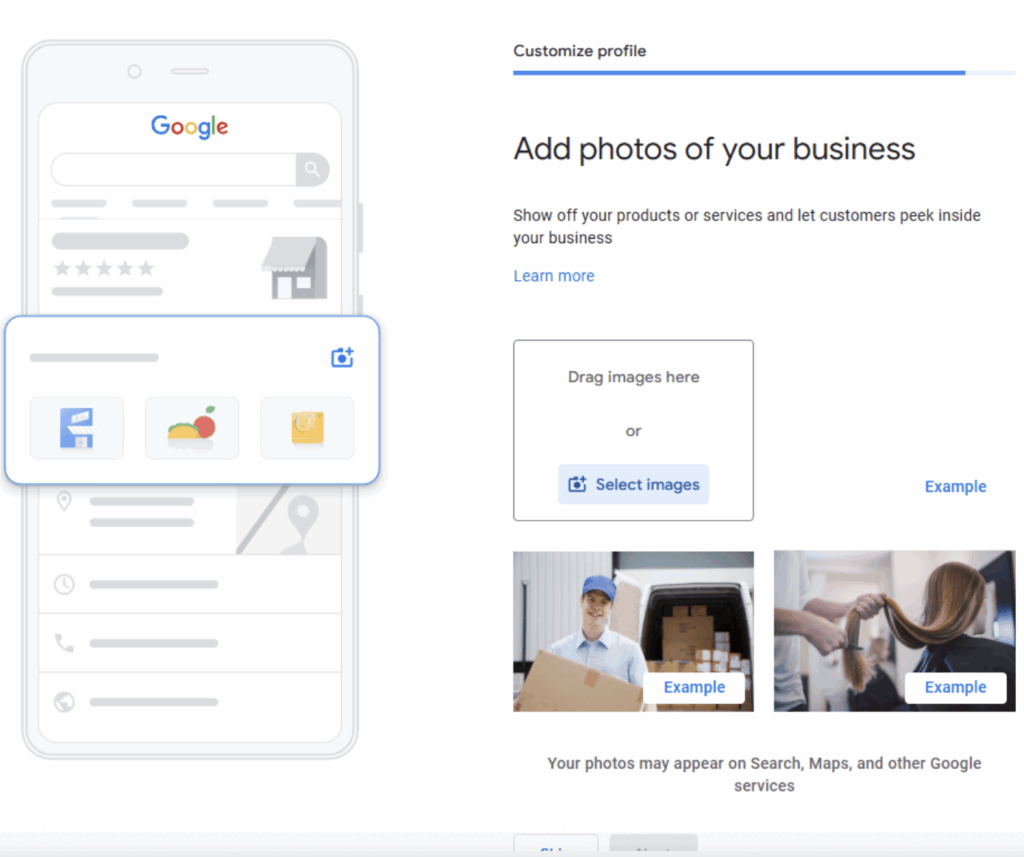
Step 14: Photos of Your Business
Adding photos to your Google Business Profile significantly boosts engagement. More requests for directions and more visits to your website. Google offers tips for business-specific photos, along with photo size guidelines.
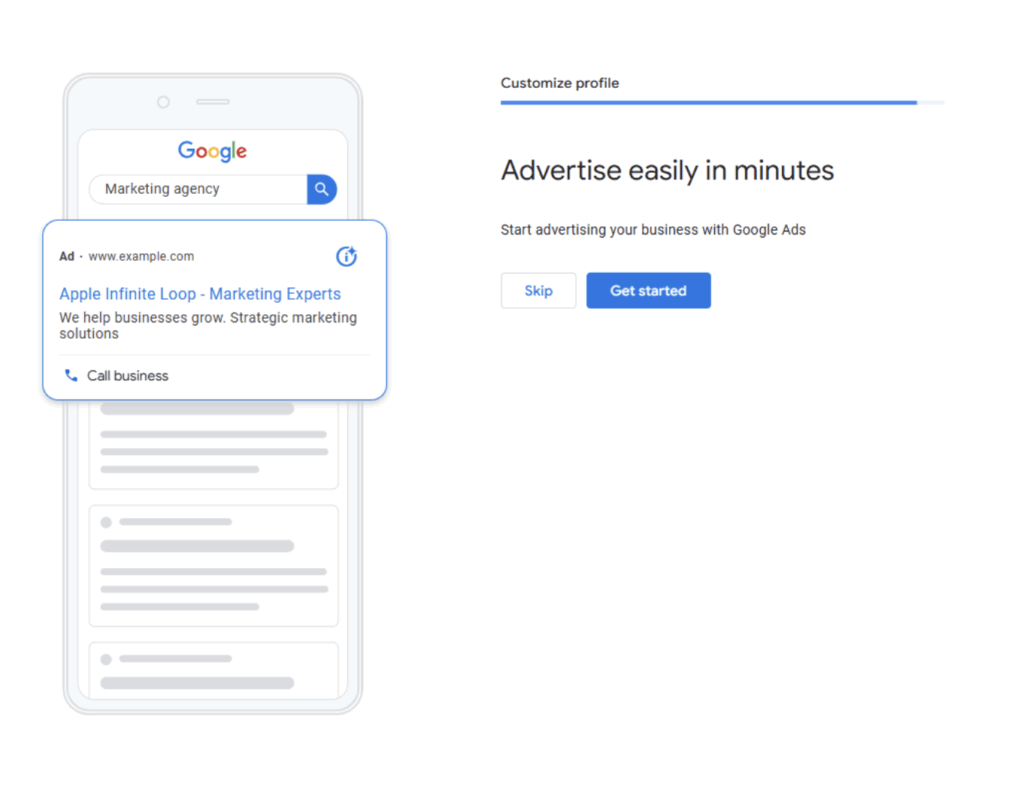
Step 15: Advertising (Optional)
Google gives you the option to start advertising your business immediately with Google Ads. We recommend you skip this part and come back to it later. If you are interested in learning more about paid advertising via Google Ads (or other paid ads), our PPC experts will be happy to follow-up with more details.
Step 16: Google Workspace (Optional Paid Service)
For managing email, advertising, file management, and other aspects of your business, Google Workspace comes as an optional part ofthe Google Business setup. All these services are part of a subscription service. You can explore the various plans and varying costs or you can skip this step. Skip this step for now if you just want to move ahead to complete your business profile setup.
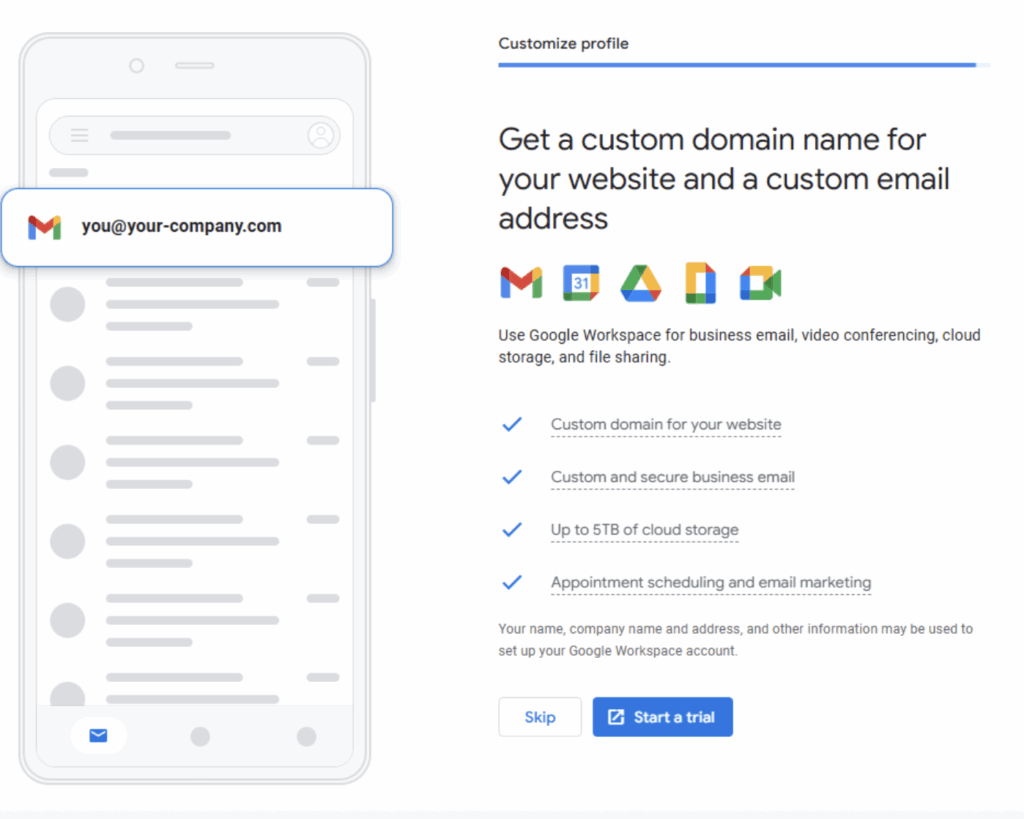
Step 17: Click Finish (Almost Done!)
If you’re sure you typed out everything accurately in the previous steps, go ahead and click the blue “Finish” button on this screen. If you’re not sure, you can click the left arrow to return to the previous steps and check your work.
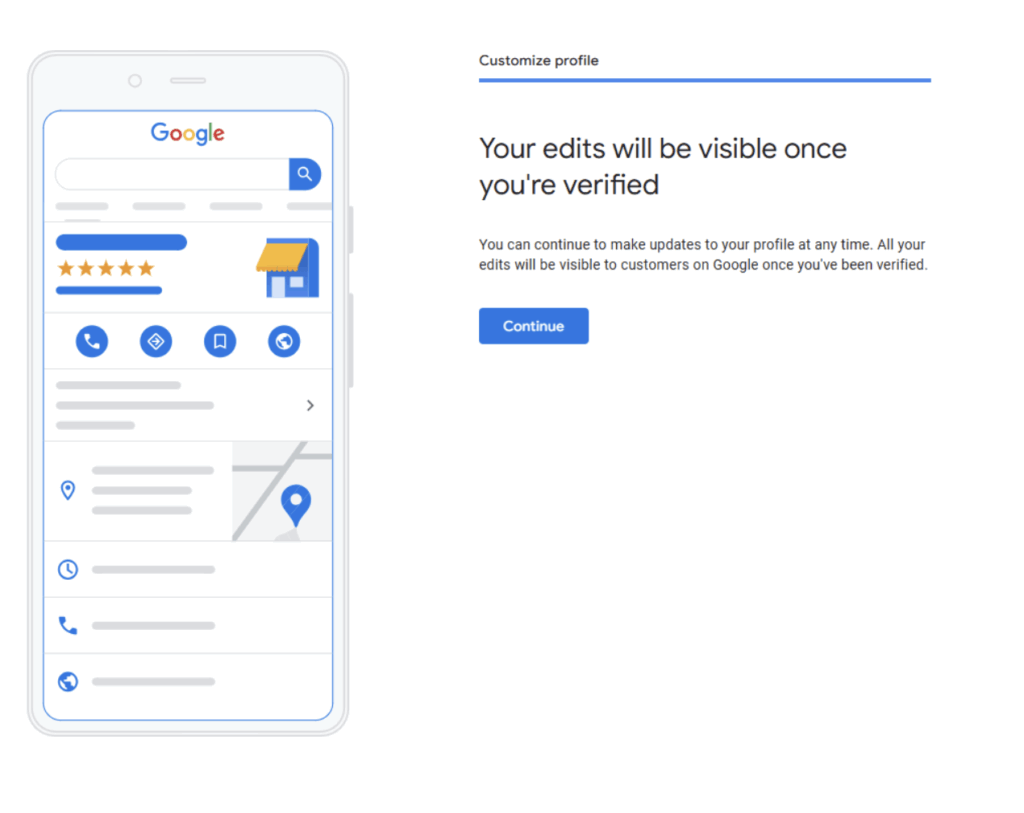
Step 18: Choose A Verification Option
Google needs to verify that you have the authority to create and manage this Google Business Profile for your business.
The exact options you’ll see in this step can vary from time to time, which is why we have not provided a screenshot. Typically, you’ll be given the option to type in your business’ address and request a verification postcard to be mailed to you. Sometimes an option is given to have Google’s system call or text your phone number and provide a code for verification.
Step 19: Finish The Verification Process
If you chose the postcard option in the previous step, it usually takes 2-5 business days to receive the postcard. The postcard will have instructions on how to finish the verification process.
If you chose the phone number option for verification, then follow the prompts on the phone, and the verification process is usually finished within minutes.
If you’ve completed all of the steps above, congratulations! You’ve done what it takes to make your business show up on Google Maps when people search for your business name.
There’s still plenty more you can do to optimize your Google Business listing, such as adding photos or a 360 virtual tour of your store or office, getting your first couple reviews, and more.
How to Get Your Google Business Profile Higher on Google
- Manage your listing directly from Google Search and Maps
Business owners no longer need a separate dashboard. Just search for your business name while logged into your business email account in Google Search or Maps to edit your profile, add hours, respond to Google reviews, upload photos, and more — and do this regularly. By keeping your information updated, accurate, and timely, you can enhance your business’s reputation and authenticity. - Leverage messaging, Google reviews, and Q&A for local visibility
Google Business Profile now includes direct messaging (like a chat feature), a Questions & Answers section, and user reviews. Engaging with these regularly not only improves customer experience but can positively impact your local ranking. Responding to positive and negative reviews shows that customer service is an important part of your business operations. - Optimize for AI Overviews and voice search
With Google’s AI-driven search experiences (like SGE), content that’s structured, concise, and helpful is more likely to be featured. Use natural language and answer common customer questions clearly to boost visibility in both AI snippets and voice searches.
These enhancements make your local marketing more powerful, but they also mean it’s more important than ever to keep your business profile optimized and active.
Generative Engine Optimization (GEO) and Google Business Profiles
As AI-powered search tools like ChatGPT, Claude, Llama, Gemini, and others (SGE) become more common, the way businesses appear in search results is evolving. Instead of relying solely on traditional search engine optimization (SEO), business owners should now consider Generative Engine Optimization (GEO).
At Sharp Innovations, we incorporate GEO strategies and SEO strategies to ensure content is structured and optimized for inclusion in AI-generated responses as well as traditional search.
Why AI and GEO Matters for Your Google Business Profile
- AI tools summarize local results: Chatbots and AI search engines often reference public business data, like your Google Business Profile, when generating responses to local queries (e.g., “best plumber near me”).
- Structured and complete GBP data feeds generative answers: A well-optimized GBP with accurate categories, hours, services, and reviews is more likely to be referenced or summarized by AI tools, and visible to the user.
- Conversational queries are increasing: People now ask questions in natural, conversational ways, such as “Where’s a good Italian restaurant open now?” or “What’s the top-rated dog groomer in York, PA?” AI and search engines rely on GBP data, reviews, and websites to respond accurately.
- Authority beyond your website matters: Search engines and AI tools also consider your visibility and expertise across the web. Answering questions on Quora, engaging in niche forums like Reddit, and sharing valuable insights on social media can help establish you as a credible source. This not only builds brand authority but can also increase the likelihood that AI-generated answers and search results feature your business. Keep your contributions helpful and non-promotional, as self-serving content is often flagged or ignored by both platforms and search algorithms.
Now, it’s time to move into Phase 2, which is all about creating a website for your business.
Phase 2: Create A Website For Your Business To Show Up on “Google Search”
Need to come back to this step later? Click here to save this step, then on your keyboard press Ctrl + D (Windows) or Cmd + D (Mac)
Once you’ve completed Phase 1 above (to create your Google Business Profile), your business will appear on Google Maps and on Google Search when people search for your business name.
This is helpful if your business is well known in your area. But what if most of your potential customers or clients haven’t heard of you yet? If all you have is a Google Business Profile (Phase 1 above), it’s very unlikely that your business will show up when people search for services that your business provides (e.g. “roof repair” or “family law practice” or “lawn mower repair”).
So how can you make your business show up on Google Search (not just Google Maps) for those more generic search terms?
This is where a website can help tremendously.
But don’t worry, even a very simple website is a step in the right direction. You can create a simple website even if you haven’t created one before (even if you do not consider yourself tech-savvy).
We’ve divided this section into 2 overall steps.
Step 1: Setup Your Domain Name And Hosting
Before you can create a website for your business, you’ll need to first register a domain name and set up a hosting account.
Not sure how to do that? The easiest option is to have a team of experts (such as our team here at Sharp Innovations) do this for you.
If you want to try this yourself, there are plenty of one-stop-shop web hosting companies to choose from including Wix, SquareSpace, GoDaddy, and more.
Since the exact steps you’ll need to take depend on which web host you choose, we recommend contacting your web host’s support team if you run into technical problems.
Tip #1: Your domain name is your digital “address” for your website, so we recommend keeping it as short as possible. For example, if your business name is “Johnny Appleseed Lawn Care Maintenance”, consider something short like appleseedlawncare.com or johnnyappleseedlawncare.com.
Tip #2: We also recommend choosing the “.com” option if possible, instead of “.net” or “.business” but those are fine too.
Step 2: Create Your Website
If you chose a one-stop-shop web host in the previous step (SquareSpace, Wix, etc), you will likely be given a choice of templates to choose from for your website.
While we highly recommend that you eventually build a multi-page, SEO optimized website for your business, you can start with something simple at the beginning.
If you go the simple route, you can create a one-page website that has your business name, your logo, and a little information about your business. Several things we highly recommend including on your website include:
- Business logo
- Business Name, address, and phone number
- List of services you provide (with a description of each service if possible)
- Your credentials, to build trust and credibility (such as any relevant certifications you or your team hold, any awards your business has won, etc)
- Contact form so visitors can reach out to you.
Feeling overwhelmed? We can help! Our team at Sharp Innovations has been building, designing, and hosting websites for more than 20 years. Request a free consultation to see how we can serve your business!
Phase 3: Publicize Your Business’ Name, Address, and Phone Number
If you’ve finished Phases 1 and 2 above, you’ve made great progress!
But there’s one more step that many business owners forget or don’t know about. If you miss this step, your business might not always show up when people search for it on Google.
That step is to submit your business’ contact information to relevant business listing websites. Although this may help you to get your business exposure on other websites, the main reason to do this is to show Google that your business’ name, address, and phone number are listed in the same way on multiple websites.
There is a way to do this for free, although it is more time-consuming and less effective. The free way is to manually submit your business information to multiple websites and business directories. Some common sites include Yelp, Better Business Bureau, Foursquare, and more. You can find other sites by searching Google for “service type” + directories. For example “roofing contractor directories” or “family law firm directories”
The easier and more effective way to do this is to have a team of experts handle this process for you. Our team at Sharp Innovations has provided this service to countless local businesses, and we’d be honored to help you as well. Get in contact with our team to see how we can help!
If you have done all of the steps above and your business still isn’t showing up on Google search or Google Maps, follow our advice on our other blog post where we answer the question “Why Doesn’t My Business Show Up On Google Maps?”
What’s Next? Here’s How To Get Even More People To Find Your Business
Getting your business to show up on Google when people search for your business name is an important first step. Without that, your exposure is limited to only word of mouth and offline advertising.
However, if your business only shows up when people search for your business name and it does not show up when people search for services your business offers, then you are missing out on a lot of potential customers or clients.
But to learn how to do this is beyond the scope of this guide, and it’s so complicated and time-consuming that instead of trying to do it themselves, most business owners hire this work out to a professional SEO (Search Engine Optimization) company.
We hope this guide has helped you to make your business show up on Google. If you have specific questions, please use the comments feature below or reach out to our team directly.
Frequently Asked Questions About Getting Your Business on Google
- How long does it take for my business to show up on Google after verification?
Once you verify your Google Business Profile, it typically takes up to 3 days for your listing to appear publicly on Google Search and Maps. In some cases, it may take longer if Google needs to review your information or if there are inconsistencies with your business data online.
- What should I do if my business Google listing isn’t appearing in search results?
First, double-check that your profile is verified and fully filled out. Determine that your business name, address, and category are accurate, and that your profile includes photos and business hours. Also, try searching from a location within your service area. If issues persist, check for duplicate listings or policy violations and consider reaching out to Google support. If you are still having issues, consider scheduling a free consultation with Sharp Innovations to see if your Google Business listing management should be outsourced.
- Can I use a home address for my Google Business Profile?
Yes, many service-based businesses operate from home. You can use your home address during setup and then choose to hide the address in your public listing. This way, your business can still show up in local searches without displaying your exact location.
- Is a website necessary if I already have a Google listing for my business?
While not required, having a website helps your business appear in more types of Google searches, especially when users search for services you offer rather than your exact business name. A simple website with your services, contact info, and location can significantly improve your visibility.
- How can I improve my ranking on Google Maps beyond just creating a profile?
In summary, to improve your local ranking, make sure to:
- Keep your profile updated regularly (hours, photos, etc.)
- Ask customers to leave Google reviews
- Respond to all reviews promptly
- Add a full list of services and a strong business description
- Use consistent business info across all online directories
These steps help build trust and authority, which Google considers when ranking local results.

Lynn is a Marketing Specialist at Sharp Innovations, where she helps businesses tell their story through thoughtful content and effective paid advertising. With a journalism background and a love for clear, helpful communication, she enjoys turning ideas into messaging that feels both human and strategic. She works across SEO, PPC, blogging, copywriting, and content planning, always with a focus on what will genuinely help people connect with a brand.