How To Update Your Business Listing Holiday Hours
December 21, 2016
3 min read
Updated for 2021* The holidays are upon us, and it’s time to make sure all your ducks are in a row whether your business takes a holiday break or you’re open for business as usual. Many customers will wonder if your holiday hours will be different from your regular hours, and it’s good business etiquette to show your special holiday hours if you’ll be having them. If you were greeted with a helpful reminder from Google to update your holiday hours, but aren’t quite sure how to do so, we’ve put together this helpful how-to blog that walks you through the necessary steps for both your Google and Bing business listings.
 Updating Google My Business Hours
- Visit business.google.com and login if necessary
- You are taken to one of two screens:
- If you see “Google Business Profile Manager“ in the upper left corner, but your business name is not listed directly below it, click on your business name in the middle window.
- If you already see your business name in the top left corner (directly underneath the Google My Business banner), skip to step 3
- Click the "Info” button along the left side of the screen
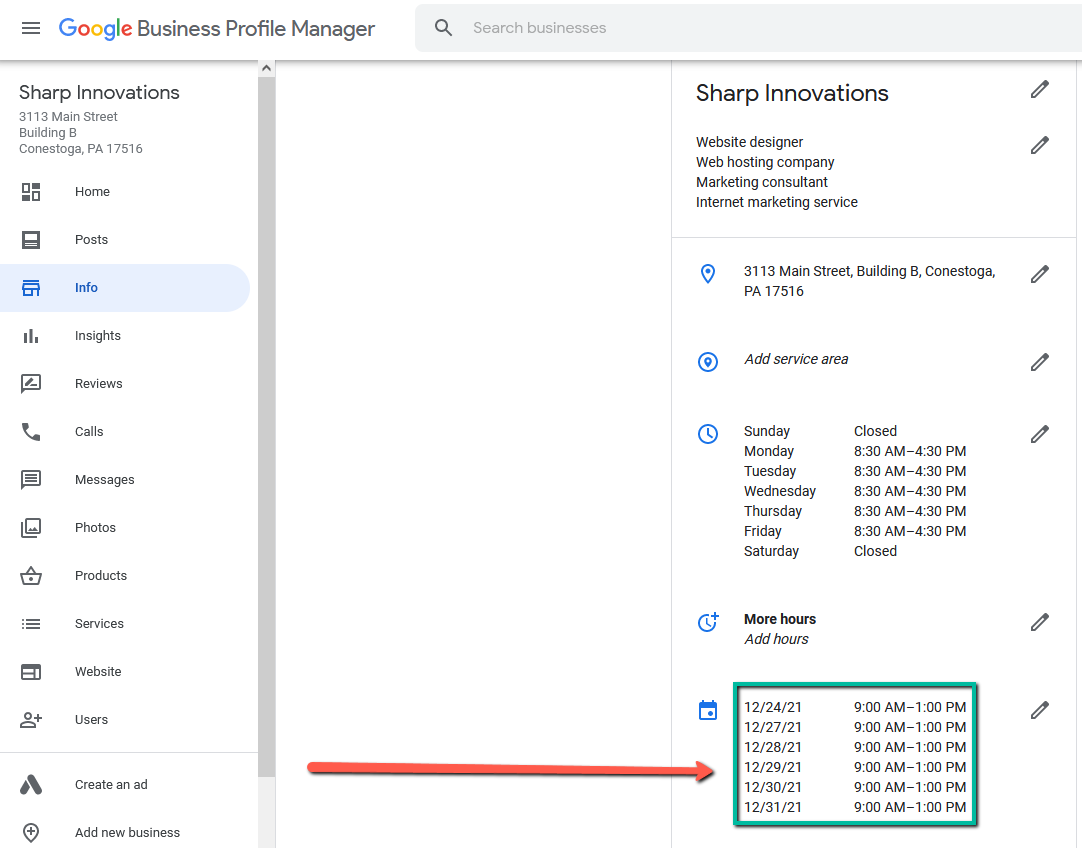
- Scroll to the section that says “Add special hours” and click the pencil icon. If you already have previously defined these, you'll see a block of hours next to a calendar symbol. Click the pencil icon.
- In this screen you can add your holiday hours. Specify the dates and times your business will be operating under holiday hours. If your business closes for a day or a week, be sure to click the button to mark the business closed. Click “Apply” when you are finished.
If you do not complete these steps, your customers will see an orange “Hours might differ” message if they search for you over the holiday break. Once you add your holiday hours, this label will turn green and specify that those are your set “Holiday hours.” Updating Bing Places Business Hours
- Visit bingplaces.com and log in if necessary
- Click on your business name in the middle window
- Click the “EDIT” button next to your business name along the left hand side (beneath the green "Published" banner and above your logo/map)
- Click the “Next” button until you get to the section that displays your hours
- Click the checkbox next to the statement that says “Yes, I want to provide working hours for special days.”
- In this section you can add your holiday hours. Specify the dates and time your business will be operating under holiday hours. If your business closes, be sure to leave the button marked “Closed” to let customers know the business is closed. Click “Submit” when you are finished.
Once again your hours will then be listed in green in the search results, signifying you have special holiday hours that you have specified in your management panel. We hope this guide helps, but if you need any help with editing or even setting up your Google or Bing business listing, be sure to give us a call at 717-290-6760, or email us at support@sharpinnovations.com. Have a blessed Christmas and a very Happy New Year!
Categories: Internet Marketing | Authored by: Rodney Hoover | Posted: 12/21/2016